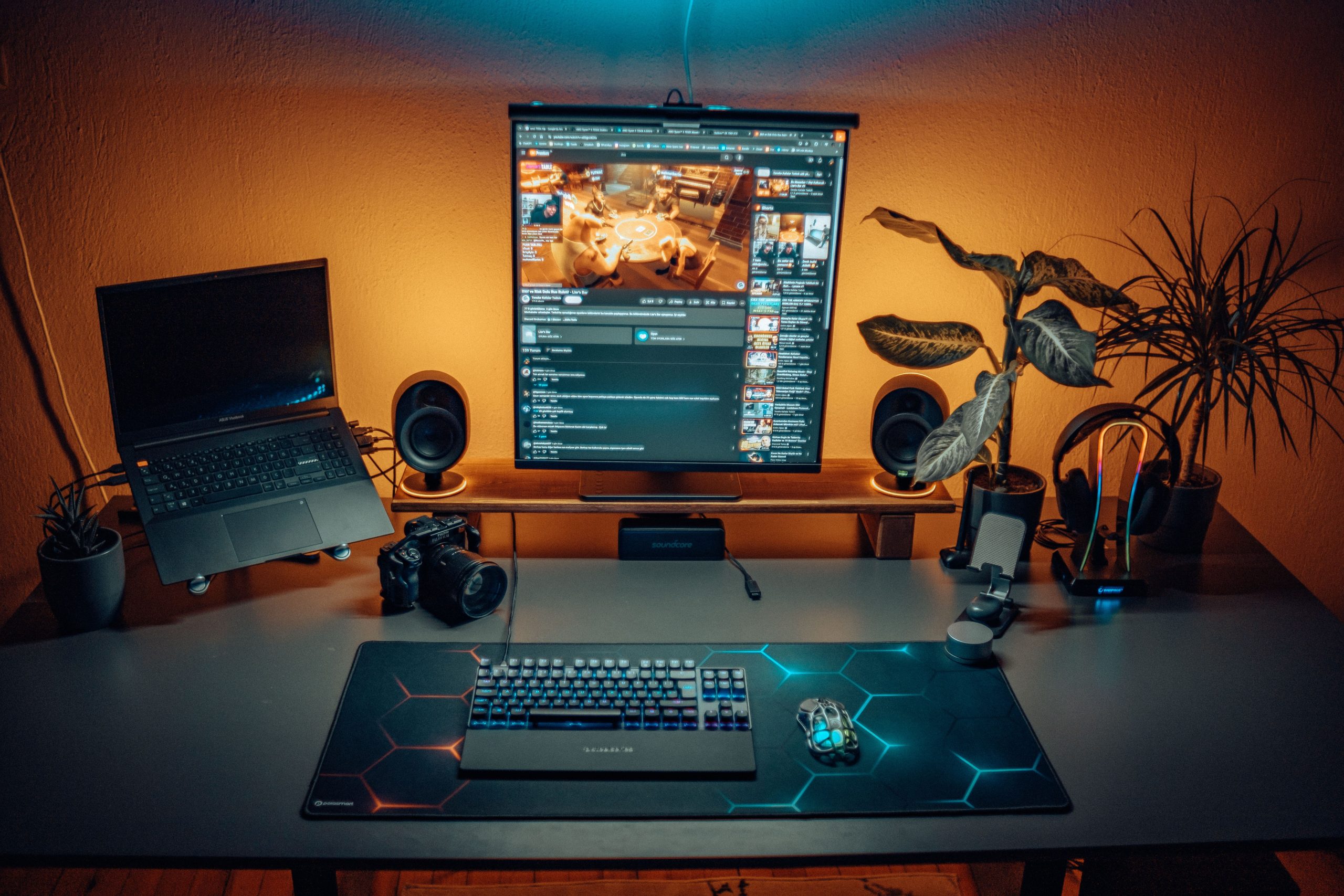
More people now use a laptop as their main computer, but many still end up hunched over a small screen with their wrists bent at an awkward angle. The good news is that you don’t need a second computer to fix this. A handful of accessories can turn your laptop into a proper desktop workstation: a stand, a keyboard, a mouse, a monitor, and a single cable that connects everything.
Below are 10 accessories worth considering, roughly in the order you should buy them if you are building a setup from scratch.

1. Lekvey Ergonomic Vertical Wireless Mouse
A standard flat mouse keeps your forearm rotated and can encourage an uncomfortable wrist position, which is exactly the posture a laptop user may already fall into. The Lekvey vertical mouse holds your hand in a handshake position instead. It is a sensible first purchase because it changes how you position your hand and forearm, not just your desk layout.
Here is what the listing offers:
Rechargeable built-in 600mAh battery with USB-C charging, using the included 150cm cable. The manufacturer claims about 3 to 4 weeks with 8 to 10 hours of daily use.
2.4G nano USB receiver stored in the bottom of the mouse, with plug-and-play setup and no Bluetooth pairing.
Three DPI levels (800, 1200, and 1600) for adjusting sensitivity.
Quiet click design and an optical sensor.
Forward and back buttons for browsing, and compatibility with Windows, Mac, and Linux.
A 36-month manufacturer’s warranty.
It is designed for medium to large hands, at 5.0 x 3.0 x 2.5 inches, and has been listed with 4.3 out of 5 stars from more than 15,000 Amazon ratings.
Keep in mind that the ergonomic claims come from the manufacturer, and most people need a few days to adjust to a vertical grip. Comfort also depends on your hand size and how you position the mouse.
If you want to check the current price and reviews, you can see the listing here: https://www.amazon.com/dp/B07BFCVJZC
2. An Adjustable Laptop Stand
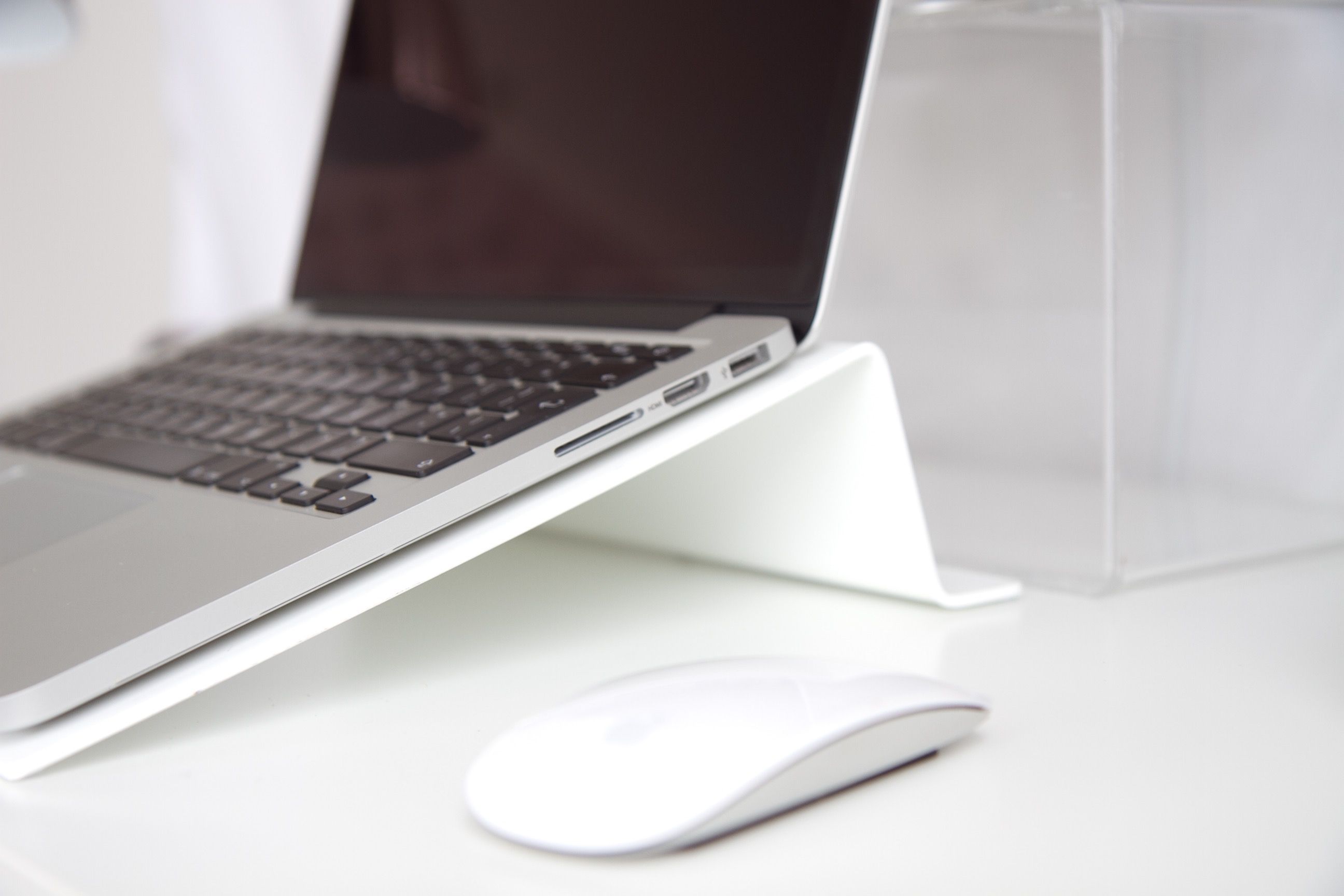
This is one of the most useful accessories for improving your working posture. Laptop screens are usually too low, which pushes your head forward, and the keyboard is too close to the screen to be comfortable for long periods.
A stand raises the display to a better height so you can type with a separate keyboard and mouse.
Ergonomic guidance from Colorado State University’s guide to laptop and tablet ergonomics recommends placing the top of the screen at or slightly below eye level, with the external keyboard and mouse close to your body at about elbow height.
Look for a stand that is sturdy, has a broad base, and offers enough height range to match your chair and desk.
Aluminum models are often a practical choice because they are sturdy without being excessively heavy. Foldable stands are especially convenient if you occasionally work from different locations.
Check the stand’s maximum supported laptop size and weight before purchasing. Some lightweight models can wobble when supporting larger laptops.
3. A Full-Size Keyboard
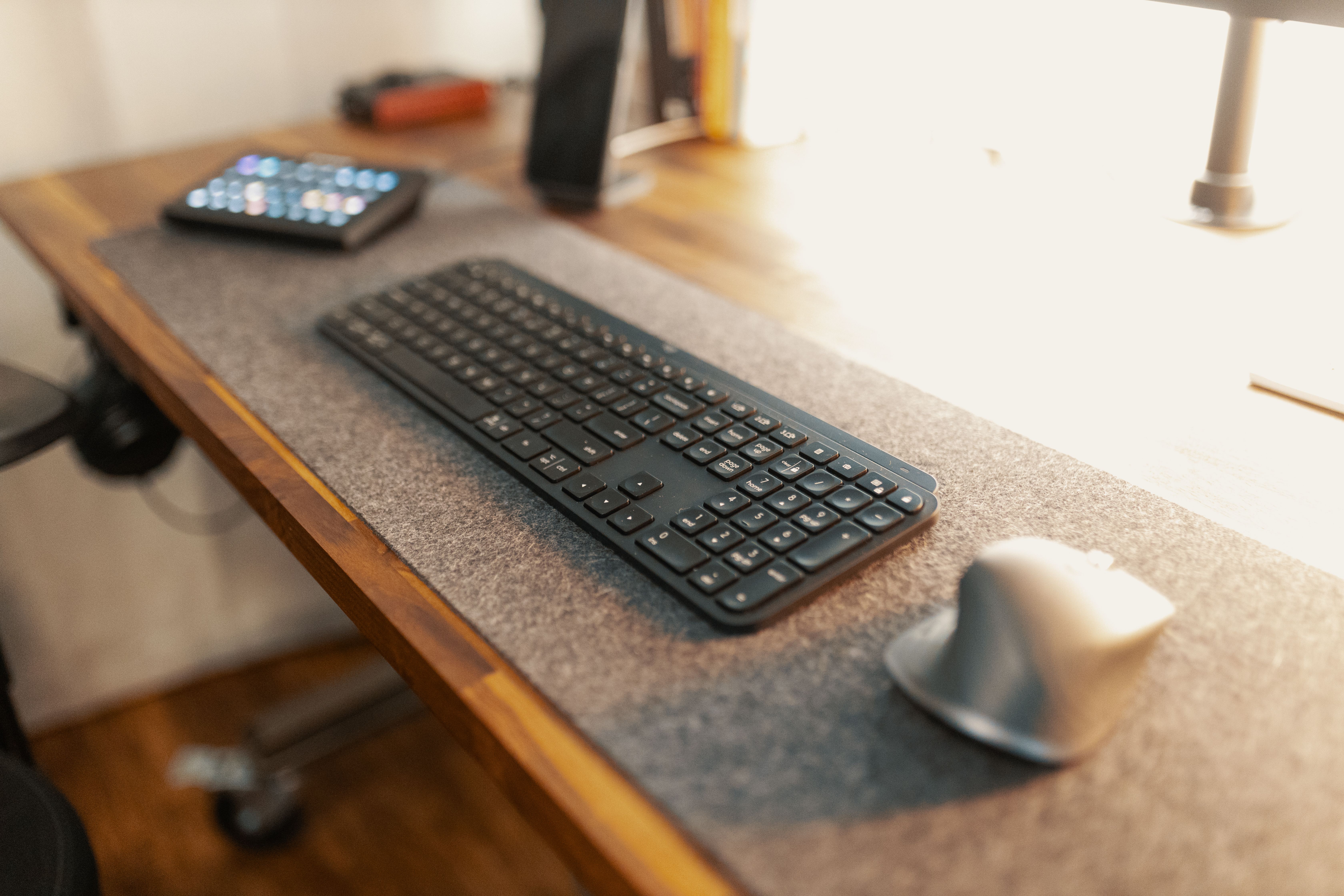
Laptop keyboards are compact, and the keys are often shallow. A full-size external keyboard, with a number pad and a standard layout, gives you more room to type and makes longer working sessions more comfortable.
Wired models avoid battery worries, while wireless models keep the desk tidy. Either way, the goal is to separate the keyboard from the screen so you can position it independently.
Pay attention to the keyboard’s height, key spacing, and typing feel. A low-profile keyboard may be more comfortable if you prefer minimal wrist movement, while mechanical models offer more noticeable feedback when pressing the keys.
A number pad is particularly useful for anyone who regularly works with spreadsheets or financial data.
However, a full-size keyboard isn’t necessary for everyone. A compact model without a number pad can keep your mouse closer to your body and save valuable desk space.
4. A Wrist Rest
A small padded wrist rest is inexpensive and can provide a comfortable place to rest your hands between typing sessions. Choose one that matches the height of your keyboard.
A rest that is too tall can push your wrists upward, which defeats the purpose.
Memory foam and gel are two common options. Memory foam tends to feel softer, while gel models often provide a firmer surface.
You should also consider the material covering the rest. Smooth, easy-to-clean fabrics are practical for daily use, particularly if you spend several hours at your desk.
Remember that a wrist rest is primarily intended to support the base of your palms during pauses, not to encourage constant pressure on your wrists while typing.
5. A USB-C Docking Station
This is the accessory that makes a laptop feel like a desktop. A dock connects your monitor, keyboard, mouse, network cable, and charger through one cable to your laptop.
When you walk in, you plug in once. When you leave, you unplug once. HP’s explainer on docking stations is a useful starting point if you are unsure how docks differ from hubs.
Before you buy, check two things. First, your laptop needs a USB-C or Thunderbolt port that supports video output, which is not true of every USB-C port.
Second, the dock’s power delivery should meet your laptop’s charging requirements so the computer can charge properly while connected.
Also check how many displays the dock supports and at what resolutions and refresh rates. Some inexpensive models have enough ports for accessories but cannot run multiple external monitors as expected.
If you regularly connect an Ethernet cable, external storage, or several USB devices, choosing a dock with extra ports can prevent another upgrade later.
6. An External Monitor
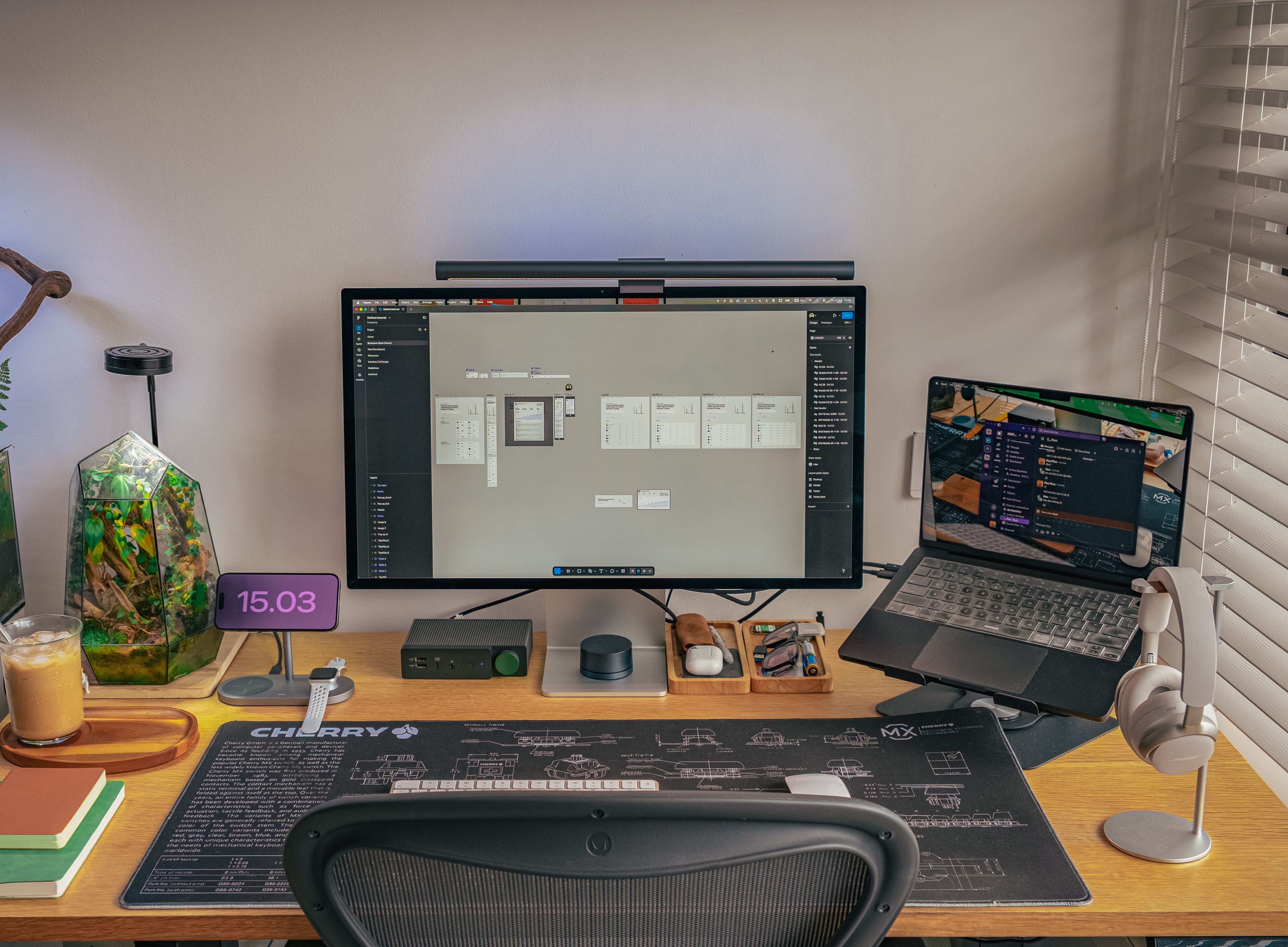
A 24- to 27-inch monitor is one of the most noticeable upgrades you can make. It gives you more space for documents, spreadsheets, and video calls than a laptop screen can offer.
Aim for a resolution of at least 1080p, and for sharper text clarity at this size, 1440p is a good target.
An IPS panel is worth considering because it generally offers good viewing angles and consistent colors. This is especially helpful when working with documents, images, or multiple windows throughout the day.
OSHA’s monitor-placement guidance covers viewing distance and height. Look for adjustable height, tilt, and connectivity options. A monitor with USB-C video input and power delivery can sometimes connect directly to your laptop without requiring a separate dock.
For most office work, a high refresh rate is less important than a comfortable screen size, clear text, and proper positioning.
7. A Monitor Arm
A monitor arm frees up desk space and lets you set the screen height and angle more precisely. It also makes it easy to shift the display closer or further away.
If your monitor stand takes up too much room, or if you want to position the screen at exactly the right height for your eyes, an arm is a clean solution.
Most models attach to the desk using a clamp or a hole-mounted fitting. Before ordering, check whether your desk can support the attachment and whether your monitor has a compatible VESA mounting pattern.
You should also verify the arm’s weight capacity. A model that cannot properly support your monitor may gradually sag or become difficult to adjust.
Gas-spring arms are particularly convenient if you frequently reposition your screen, although a simple fixed-height arm may be sufficient for a stationary workstation.
8. A 1080p Webcam
Your laptop webcam is often placed low and at a poor angle. An external webcam sits on top of your monitor, where it lines up more naturally with your eyes.
This matters more than it sounds if you spend hours on video calls.
Look for a model with 1080p resolution, a decent microphone, and a privacy shutter if you care about that feature.
Autofocus and automatic exposure adjustment can also be useful, especially if the lighting in your room changes throughout the day.
However, resolution alone doesn’t guarantee a good picture. Proper lighting can make a bigger difference than upgrading from one inexpensive webcam to another.
If possible, position a soft light source in front of you rather than behind your chair. This helps avoid dark facial shadows and makes video calls look more professional.
9. Desk Speakers or a Headset
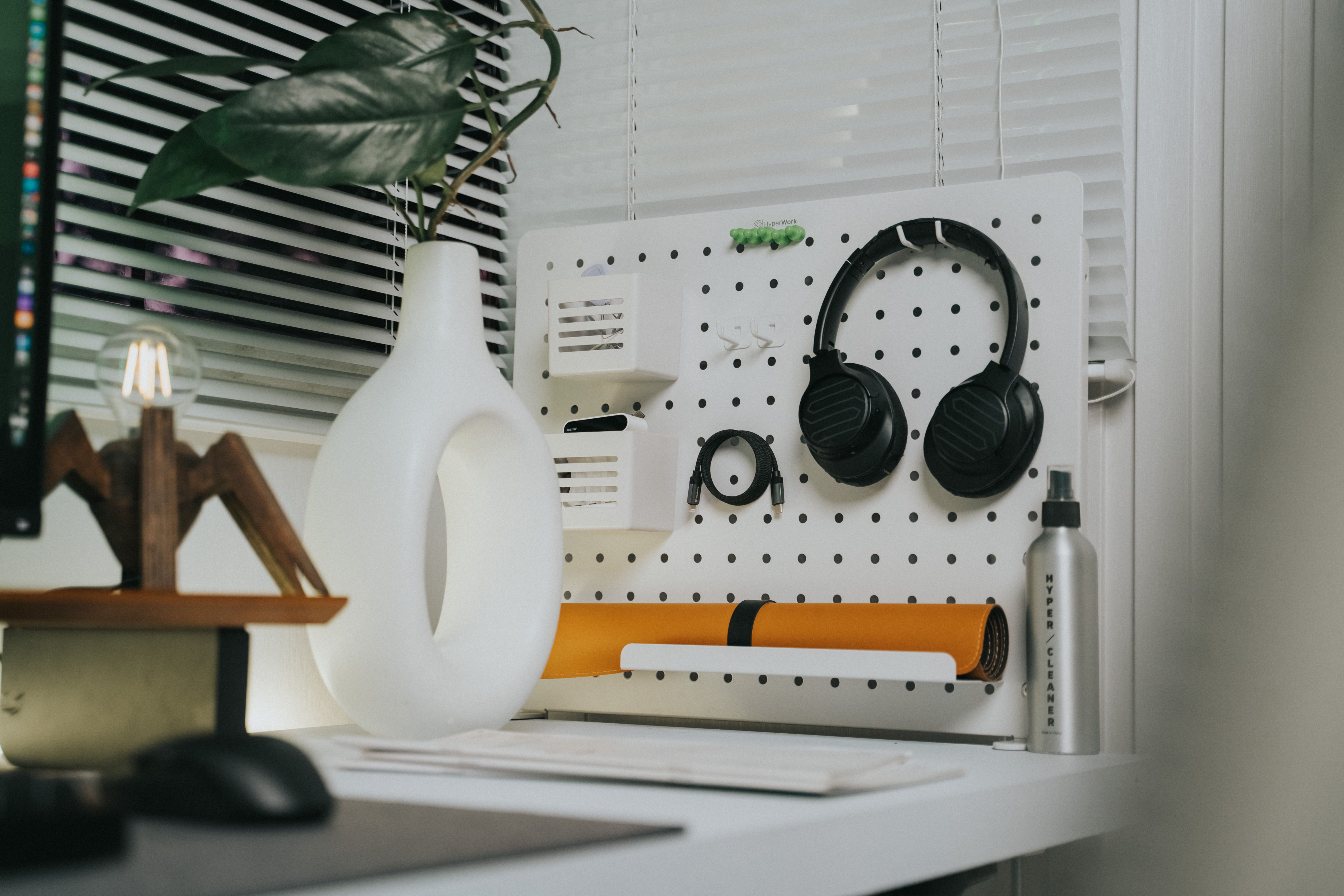
Laptop speakers are small and often lack depth. A pair of desk speakers gives you a better listening experience for music, presentations, and videos.
If you take a lot of calls or work in a shared space, a good headset with a noise-cancelling microphone may be a better choice.
For speakers, consider the available desk space and connection type. Compact USB-powered models are convenient because they don’t always require a separate power adapter.
For headsets, comfort should be a priority. Lightweight construction, adjustable earcups, and breathable padding can make a noticeable difference during long meetings.
Wired headsets are generally straightforward to use, while Bluetooth models give you more freedom to move around.
If your workday involves frequent video conferences, microphone clarity is often more valuable than powerful bass or other entertainment-focused features.
10. Cable Management and a Power Strip
A desktop setup with loose cables looks messy and makes it harder to move things around. A cable tray, a few reusable ties, and a power strip mounted under the desk keep everything neat.
This is a small purchase, but it makes the setup feel finished and makes unplugging your laptop at the end of the day much easier.
Start by grouping cables according to where they connect. Reusable hook-and-loop ties are preferable to permanent plastic ties when you expect to replace or rearrange accessories.
Adhesive cable clips can guide charging and USB cables along the back of your desk, keeping them accessible without leaving them tangled.
Choose a power strip with appropriate electrical ratings and enough outlets for your equipment. Avoid overloading it, and keep cables away from chair wheels and moving desk components.
If you use a height-adjustable desk, leave enough cable slack for the desk to move safely.
Final Thoughts
You do not need to replace your laptop to enjoy a proper desktop setup. Start with a stand, a keyboard, and a mouse, which together address some of the most common problems with working directly on a laptop.
Add a dock and an external monitor when you are ready for more screen space and easier connectivity.
You also don’t need to buy everything at once. Prioritize the accessories that address your biggest daily frustrations, whether that’s neck discomfort, limited screen space, or too many cables.
With a few carefully chosen additions, your existing laptop can become the center of a comfortable, organized workstation that supports your everyday work.